
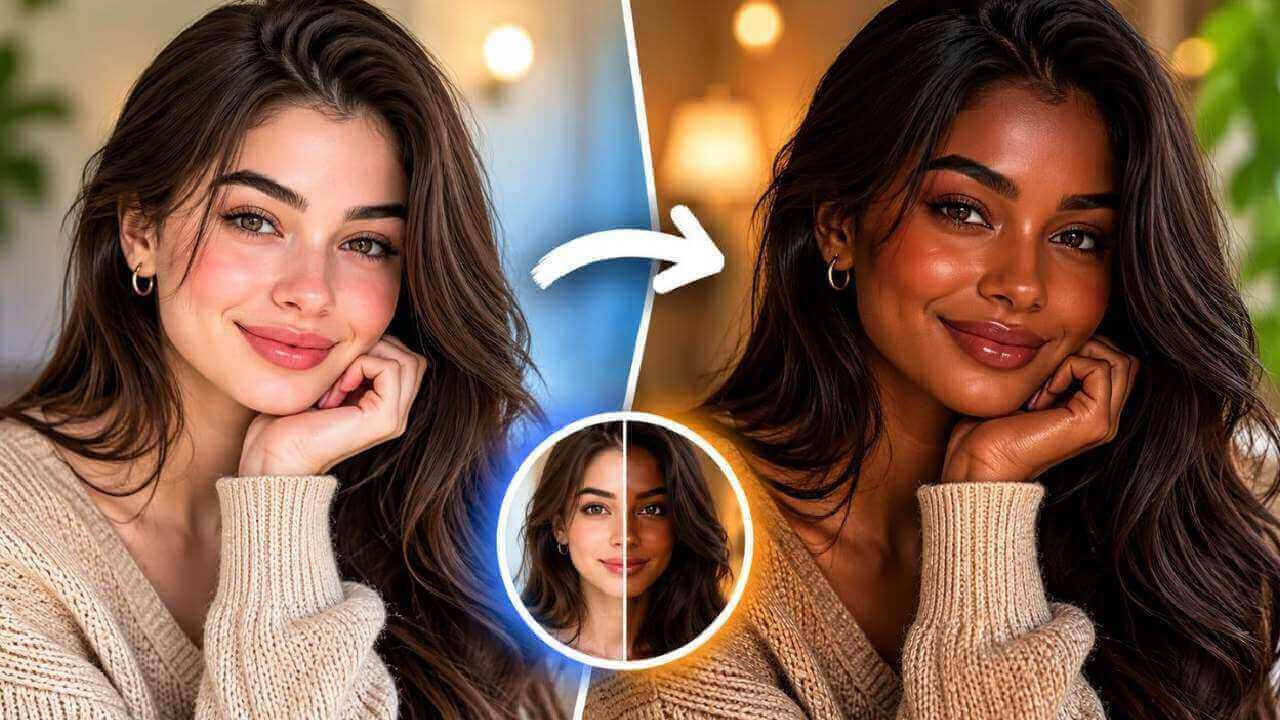
What Is an AI Image Editor?
An AI image editor lets you change a photo by describing the result in words. Instead of building masks, layers and adjustment stacks, you simply tell the AI what should change — remove the sign, replace the sky, clean up the background, brighten the face — and it edits only that part of the image while keeping everything else intact.
That makes it a practical everyday tool rather than a professional editing suite. Online sellers clean up product shots, creators fix distracting details in photos, and anyone can retouch a portrait in seconds. Because the heavy lifting happens on the AI side, you get believable results without learning curves, expensive software or manual selections.
Core Features of the AI Image Editor
Edit with Plain Language
Type what you want changed in normal words — no brushes, masks, layers or shortcut memorization required.
Remove Objects in One Step
Clear trash cans, wires, signs, strangers or clutter, and the AI fills the gap with matching background.
Swap or Clean Up Backgrounds
Replace a messy room with a plain studio backdrop or a new scene, and blending stays natural around hair and edges.
Gentle Portrait Retouching
Smooth blemishes, even out skin tones and clean stray hairs while keeping facial features recognizable and natural.
Free, No Watermark, No Sign-Up
Every edit is free and watermark-free, with no account required, so results are ready to post or publish immediately.
Seconds per Edit
Upload, describe, generate and download in under a minute, so you can iterate on several versions quickly.
How to Use the AI Image Editor (Step by Step)
No design experience is needed. Here is the complete workflow:
- Open the editor. Go to the AI image editor page on AIDoImg.
- Upload your photo. Drag and drop an image or pick one from your device.
- Describe the change. Write a short, specific instruction such as remove the bench on the right and keep the grass.
- Generate and download. Wait a few seconds, review the result, and download the watermark-free image.
Pro Tips for Cleaner AI Photo Edits
These habits keep results sharp and predictable:
- One instruction at a time. Removing an object and replacing the background in the same prompt often muddles both edits.
- Name the object and its location. Saying the blue cooler bag on the left gives far better results than saying the thing in the corner.
- Start from the largest image you have. More pixels give the AI more detail to rebuild edges, textures and shadows.
- Keep the main subject untouched. If a face or logo must stay identical, mention it explicitly in the instruction.
- Generate a few variations. If the first result looks off, run the same prompt again and pick the cleanest version.
Working on a specific task? The AI object remover is built for deleting clutter, while the AI background changer focuses on scene swaps. You can also read our guides on the object remover and the background changer for deeper workflows.
Frequently Asked Questions (FAQ)
Is the AI image editor really free to use?
Yes. The AI image editor on AIDoImg is completely free, with no hidden fees, no watermark and no credit card required. You can edit as many photos as you like.
Do I need an account to edit a photo?
No account is needed. Open the tool, upload a picture, describe your edit and download the result. The whole flow runs in your browser without sign-up.
What kind of edits can I ask for?
You can remove unwanted objects and people, replace the background, retouch skin and blemishes, change colors, add or remove small details, and restyle the overall look of the photo in natural language.
How do I write a good editing instruction?
Be specific and describe one change at a time. Instead of make it better, write remove the red car on the left and keep the street. Clear instructions give cleaner, more predictable results.
Does the AI keep the rest of the photo unchanged?
Yes. The AI only modifies the area related to your instruction, so faces, poses, lighting and everything else stay close to the original image.
Are my photos private?
Your image is used only to generate the edit you requested. Photos are not published to any public gallery, so your privacy stays protected.